







What is Schedule Builder?

Schedule Builder is a real-time class scheduling tool that enables students to plan and register for courses that meet their schedules and other needs. With this tool, students can easily arrange class schedules that fit their personal and academic lives. For more information on Schedule Builder, click the link below.

View CUNYfirst Knowledge Base: Schedule Builder

How to Add, Swap, and Drop Courses

STEP 1
Open Schedule Builder

Log in to CUNYfirst, open Schedule Builder, and choose the term you are registering for
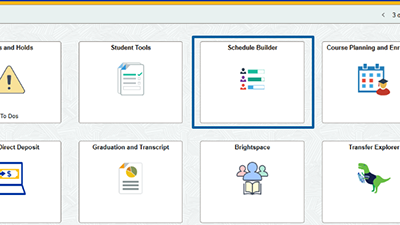
 

Schedule Builder - Step 1 for adding a class


STEP 2
Search for Courses

Search by subject and course number (for example, ENG 121) to add it to your list.
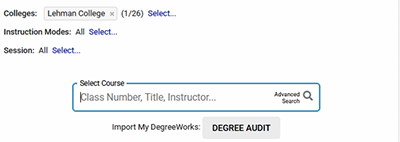
 

Schedule Builder - Step 2 for adding a class


STEP 3
Choose a Schedule

Review the generated schedules and pick the one that fits your week. Select the "Continue" button to preview your actions.
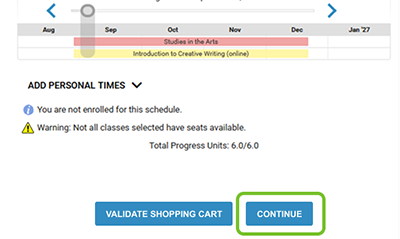
 

Schedule Builder - Step 3 for adding a class


STEP 4
Select Enroll and Confirm Your Enrollment

Next to each class, choose Enroll. Click on the "Continue" button to preview your actions and click on "Do Actions" to finalize the enrollment. Check your class schedule to make sure it is added to your schedule.
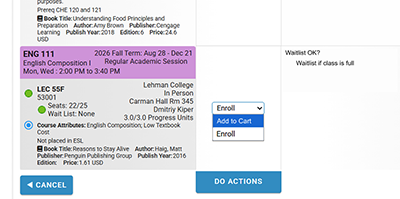
 

Schedule Builder - Step 4 for adding a class


STEP 1
Find Your Enrolled Class

In Schedule Builder, locate the class you want to replace in your current schedule and click on the trash can icon to temporarily remove it.
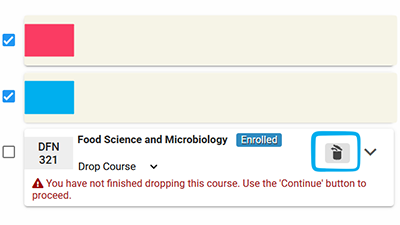
 

schedule builder, step 1, swap, swap a class, swap a course


STEP 2
Pick the Replacement

Search for the new course or section and add it to your schedule.
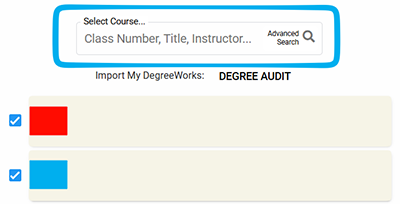
 

Schedule Builder - Step 2 for Swapping a class


STEP 3
Confirm the Swap

Click on the "Continue" button to preview your actions and click on "Do Actions" to finalize the swap. Check your class schedule to make sure it is updated.
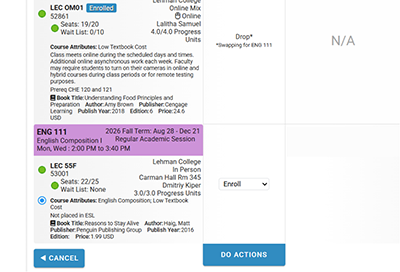
 

Schedule Builder - Step 3 for Swapping a class


STEP 1
Remove the Class

Select the trashcan icon next to the class you want to drop.
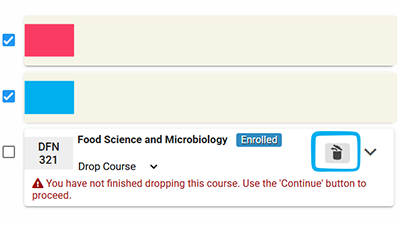
 

Schedule Builder - Step 1 for Dropping a class


STEP 2
Confirm the Drop

Click on the "Continue" button to preview your actions and click on "Do Actions" to finalize the drop. Check your class schedule to make sure it is gone.
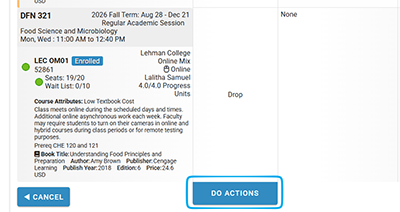
 

Schedule Builder - Step 2 for Dropping a class


SCHEDULE BUILDER QUICK-GUIDE VIDEO

Watch this short video for a quick overview of how to use Schedule Builder.


NEED MORE HELP?

If you have questions about Schedule Builder or registration, please click the link below to view our Schedule Builder Student Guide for more information, or contact our office at registrar.office@lehman.cuny.edu for further assistance.

View Student Guide (PDF)

FREQUENTLY ASKED QUESTIONS

If Schedule Builder won't open, try the following steps:

  • Make sure pop-ups are allowed in your browser.
  • Try a different web browser. Firefox and Chrome are the preferred browsers.
  • Contact the IT Help Desk for further assistance.

"Add to Cart" allows you to save classes for later enrollment, while "Enroll" directly registers you for the class.

If a class is full, you will not be able to add it to your schedule. You may want to check back later or contact the respective department offering the class for more information.

You can find your enrollment appointment in CUNYfirst by going to the "Student Center" section and selecting "Course Planning and Enrollment". Look for the "Enrollment Dates" link on the left-hand side to see when you can register for classes.

You can check the status of your schedule in CUNYfirst under the "Student Center" section. Look for the "Course Planning and Enrollment" link to view your current schedule and confirm any changes.

If you encounter an error, try refreshing the page or logging out and back in. If the problem persists, contact the IT help desk for assistance.

No, Schedule Builder is a planning tool. You must click "Enroll" to register for the classes you select.

A PERM class is a class code added to your record as a placeholder for your approved ePermit course.