






Connect to Campus Wi-Fi using Android Device


Objective:

To guides users through the process of successfully configuring the Campus Wireless Network on their Android Device.


Prerequisite: prior Lehman Login Account activation required. Refer to this article to learn how to activate your account. 

Procedure

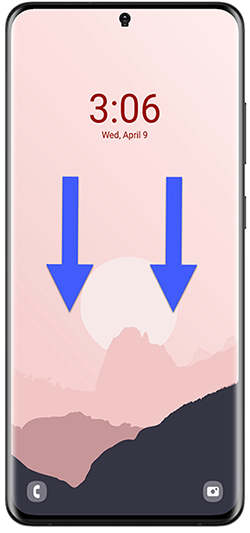
From your phone’s Home or Lock Screen, slide down from the top to view your Notification Panel and tap on the Gear icon.
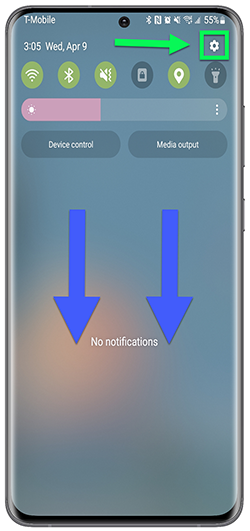
Connect to Wi-Fi using Android Device Step 1     Connect to Wi-Fi using Android Device Step 1a

On the Settings screen, tap on Connections and make sure the Wi-Fi option is toggled on. If not, tap on the toggle to turn it on.
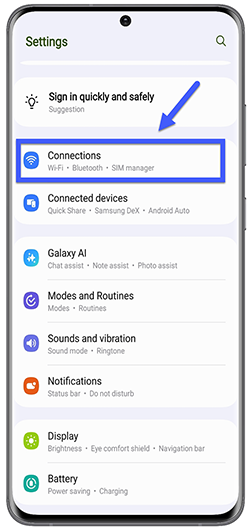
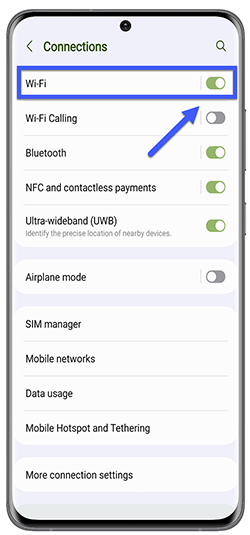
Connect to Wi-Fi using Android Device Step 2    Connect to Wi-Fi using Android Device Step 2a

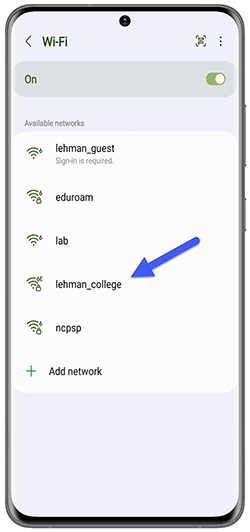
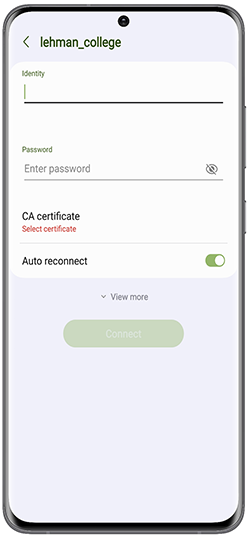
Tap on the word “Wi-Fi” to see all available networks found. From the networks displayed, tap on the one with the name “lehman_college” and type in your information as follows:

  1. In the Identity field, type your Lehman 360 username.
  2. In the Password field, type your Lehman 360 password.
  3. In the CA certificate option, select Don’t validate.

Connect to Wi-Fi using Android Device Step 3   Connect to Wi-Fi using Android Device Step 3a

Note: if you need to select the EAP method, make sure it is set to PEAP.

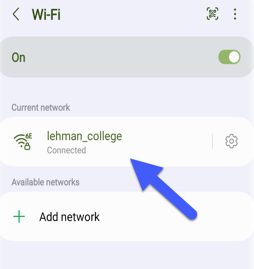
Tap on Connect after all settings are set. The Wi-Fi status will display your connection to the “lehman_college” network.

Connect to Wi-Fi using Android Device Step 4

Your device is now configured to connect to “lehman_college”. In the future, your device may connect to the same network automatically when Wi-Fi is turned on.