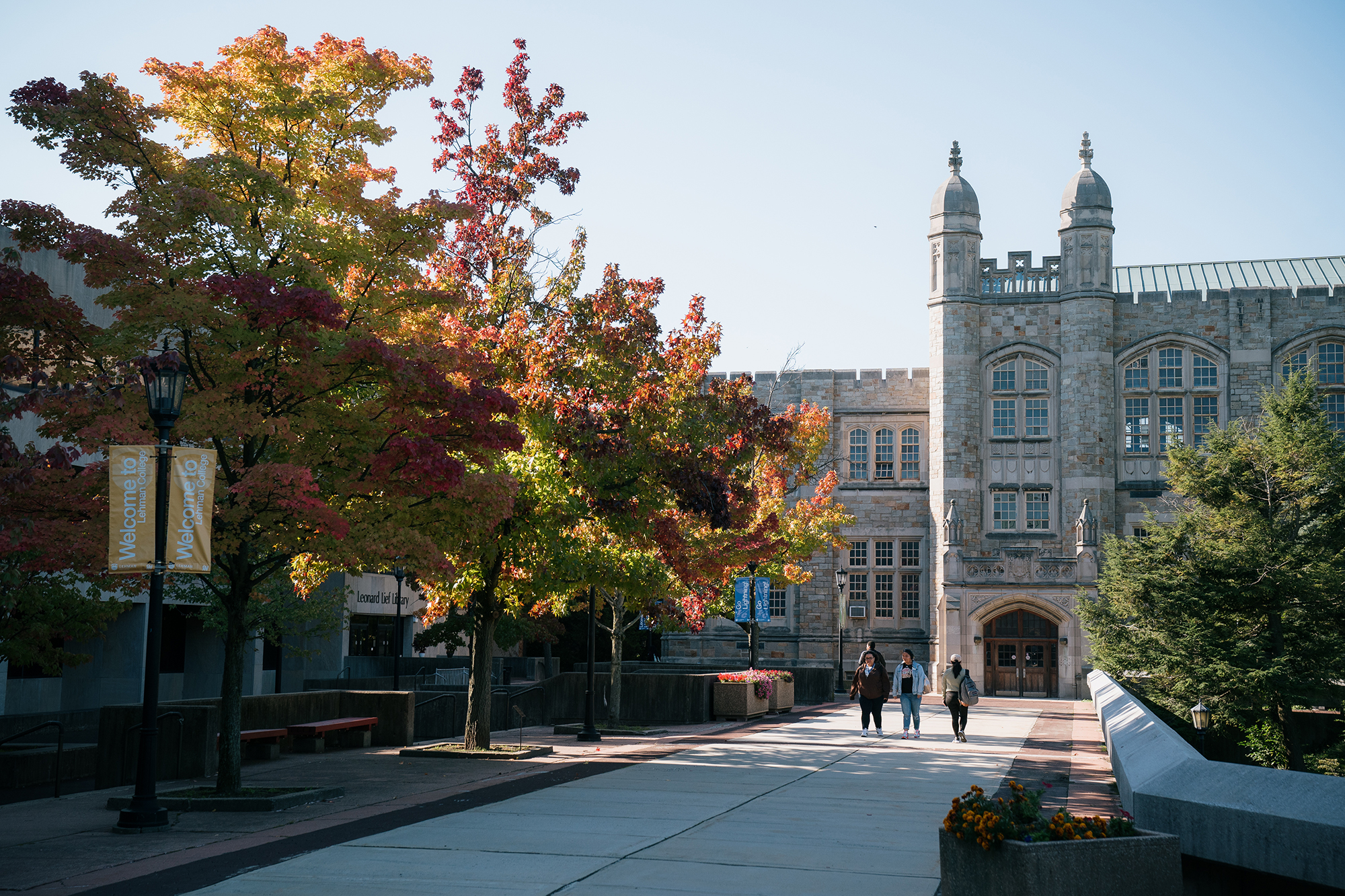






Connect to Campus Wi-Fi using Windows 11 Device


Objective:

To guide users through the process of configuring the Campus Wireless Network in their Windows 11 device.


Prerequisite: prior Lehman Login Account activation required. Refer to this article to learn how to activate your account. 

Procedure

On your Windows 11 device, in the bottom-right corner of your screen, click the Globe (Network) icon on the taskbar.
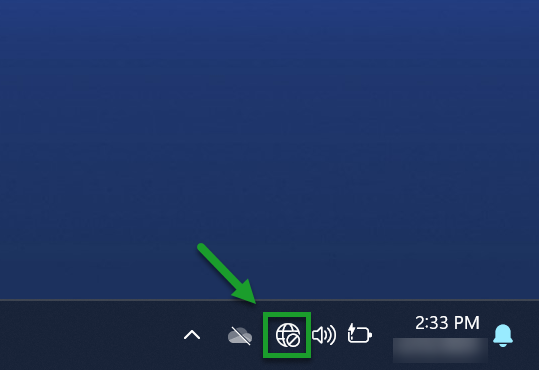
Connect to Wi-Fi using Windows 11 Device - Step 1

Click the arrow (>) next to the Wi-Fi icon to view available networks.
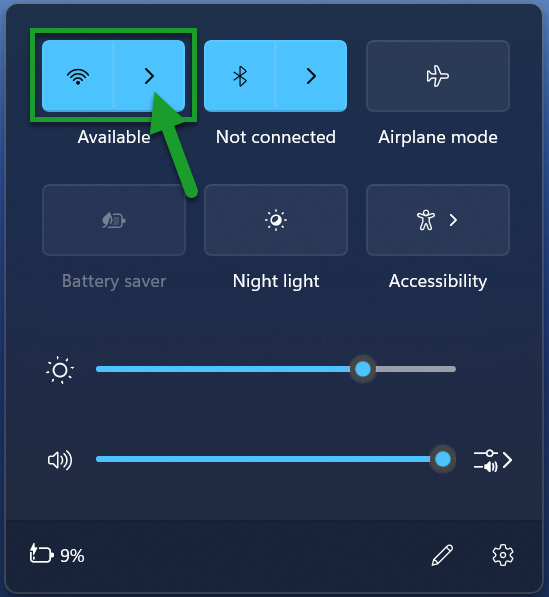
Connect to Wi-Fi using Windows 11 Device - Step 2

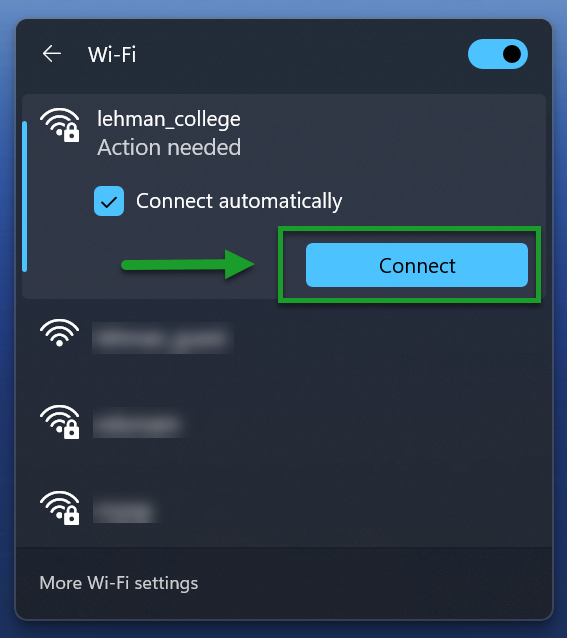
Click lehman_college from the list of available networks, then click Connect.
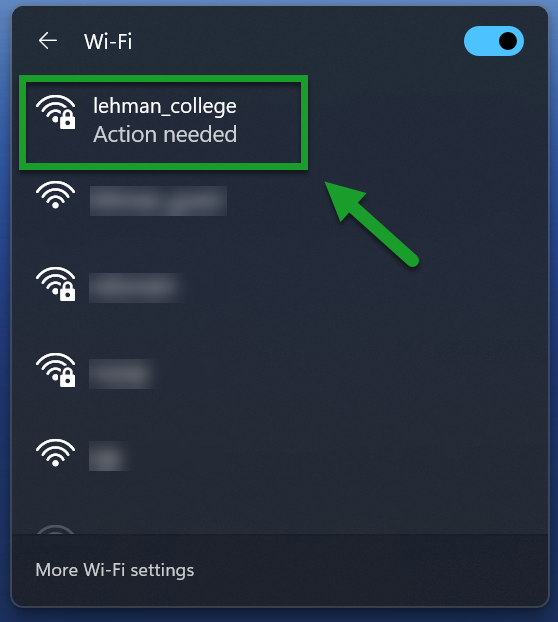
Connect to Wi-Fi using Windows 11 Device - Step 3    Connect to Wi-Fi using Windows 11 Device - Step 3a

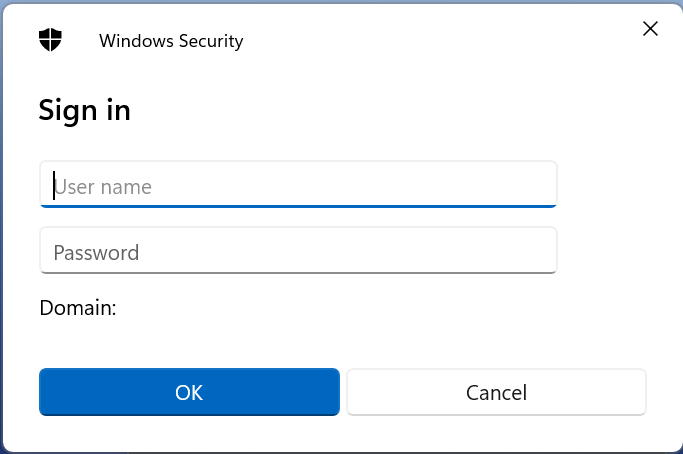
Ennter your Lehman Login Account credentials (firstname.lastname) and click OK.

Connect to Wi-Fi using Windows 11 Device - Step 4


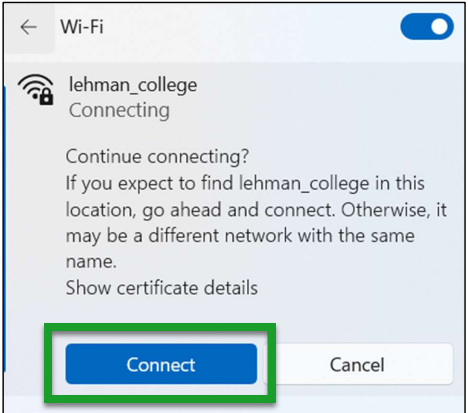
Note: If a security or connection prompt appears, click Connect to continue.

Connect to Wi-Fi using Windows 11 Device - Step 4a


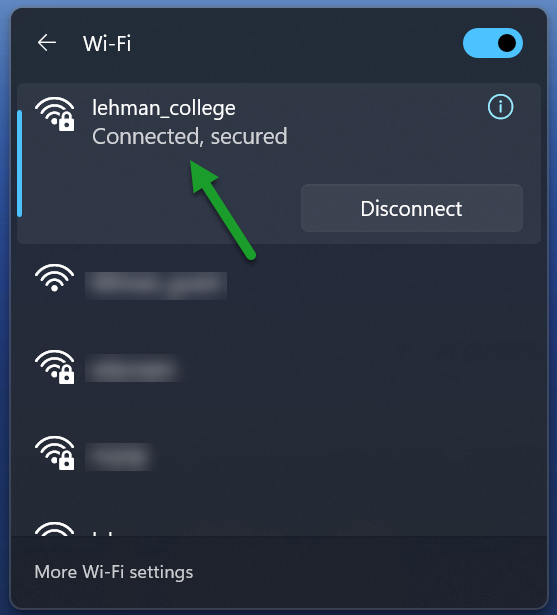
Once connected, the network status for lehman_college will show as Connected, secured.

Connect to Wi-Fi using Windows 11 Device - Step 5