For instructors planning to use Blackboard
updated
18
August 2005If you are unfamiliar with Blackboard, consider attending an introductory workshop for faculty. The workshop schedule may be found on the Lehman web site at the following address:
http://www.lehman.edu/docs/bbfa2005.html
If the schedule is not convenient or if you anticipate special problems, contact John Dono at (718) 960-8338 or via email at john@lehman.cuny.edu.
Consider bringing your class to the Information Technology Center for an orientation to Blackboard. You can reserve an IT Center classroom through Jean Warfel in the Office of the Registrar at (718) 960-8254. If you would like an IT Center staff member to conduct the orientation, contact Valerie Henderson of ITR at (718) 960-8698 or via email at Valerie.Henderson@lehman.cuny.edu.
ITR offers workshops for students on a variety of topics including CUNY Portal, Lehman Email, and Microsoft Word. Direct your students to the following web page for the schedule and other details:
http://www.lehman.edu/training
In order to use Blackboard, you and your students must register on the CUNY Portal - a web-based application that allows single sign-on to Blackboard, centralized library resources, eSIMS and other CUNY services. To register on the portal, go to http://www.cuny.edu. For information on the portal registration process and where to obtain help if you are unable to complete the registration process successfully, see the following document:
http://www.lehman.edu/docs/portalinfo.pdf
To access Blackboard, login to the CUNY Portal at http://www.cuny.edu after you have completed your registration. In the event the portal home page is not available, registered portal users can login directly to Blackboard via the Blackboard "sidedoor" at http://blackboard-doorway.cuny.edu by entering their Portal Username and Password in the text boxes.
In the event you or your students do not have a valid active portal username and password, you can still access Blackboard via the Blackboard "sidedoor" at http://blackboard-doorway.cuny.edu. This might be necessary if a student is not able to register or not able to request a reset of a password because the portal is unstable or unavailable.
To gain access to Blackboard without a portal username and password, click on the word "here" on the sidedoor page:
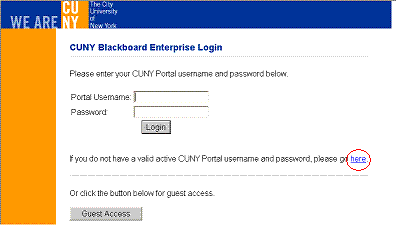
The student will be prompted to enter personal information including last name, date of birth and social security number. This method of accessing Blackboard should only be used when registration or a password reset is temporarily blocked. For this to work current students must enter information that matches their records in SIMS and active staff and faculty must enter information that matches their records in the City University Personnel System (CUPS). This will not help in those cases where students are not officially registered in a class or where a faculty appointment is not yet active in CUPS.
A Blackboard course is automatically created for every credit-bearing College course that appears in SIMS. There is usually no need to request that your credit-bearing course be created on Blackboard.
You should confirm as soon as possible that the information regarding your Blackboard course assignments and course enrollments is correct.
Your Blackboard courses appear under "Courses you are teaching" on your "My Institution" Page (your opening Blackboard page). A typical course id looks like this:
LC_LEH_300_ONAW1_200509
Pay particular attention to the semester identifier (year and month) that appears at the end of the course code. "200509" indicates a fall 2005 course.
Instructors are automatically assigned to Blackboard courses based on data in the Student Information Management System (SIMS). If your teaching assignments have not been entered into SIMS, you will not see the course listed on Blackboard. There are a variety of reasons why this might happen, e.g. adjunct and new full-time appointments are sometimes delayed, you may have been assigned the class late etc. If you do not see a course listed which you plan to teach with Blackboard, check with the chair of your department that the Registrar's Office has been notified of your teaching assignment. If it is not feasible to adjust the teaching assignment in SIMS on a timely basis, please contact John Dono (john@lehman.cuny.edu) or Jerry Barnard (jerold.barnard@lehman.cuny.edu) as soon as possible for advice on how to proceed.
You should also check that all the students on your official roster are enrolled in your Blackboard course. In the Control Panel of your Blackboard course, click on List/Modify Users, then on Search. A list of all students enrolled in your course should display. Students are automatically enrolled in their Blackboard courses based on data in SIMS. This list will change daily at the beginning of the semester as students add and drop courses.
To the extent that the completion of registration is delayed as sometimes happens with students in special programs (e.g. union-funded programs, Teaching Fellows), they will not have access to your Blackboard course. Instructors of courses of this type should first check with program coordinators to see if this is likely to be a problem. If so, contact John Dono (john@lehman.cuny.edu) or Jerry Barnard (jerold.barnard@lehman.cuny.edu) as soon as possible for advice on how to proceed. If you find a few students on your official roster missing from your Blackboard course, direct them to the IT Center Help Desk (718 960-1111 or helpdesk@lehman.cuny.edu)
New courses are set to "unavailable" by default, that is, they are unavailable to your students and will not appear on their opening Blackboard pages. You as the instructor will see (unavailable) next to the course id on your main Blackboard page. The unavailable setting is the most common reason for students reporting to the IT Help Desk that they are not in their Blackboard courses. Instructors are able to enter and work on a course that is unavailable to students. When you are ready to have your students enter the course, go to Control Panel > Course Settings > Course Availability to change the setting from No to Yes.
Lehman College email addresses are used within Blackboard in almost all cases. These are email addresses with the following format:
firstname.lastname@lehman.cuny.edu.
This setting cannot be changed. These email addresses are displayed when you select List/Modify Users in the Control Panel. If you send mail to students in your class from within Blackboard, the mail will be sent to the student's Lehman College email address. If a student sends mail to you from within Blackboard, it will go to your Lehman College email address. For information on Lehman College email, see:
http://www.lehman.edu/docs/mirapoint/lcmirapoint.html
Regardless of your use of email within Blackboard, it is critical that Blackboard users be familiar with Lehman College email. Reset portal passwords are generally sent via email to Lehman College email addresses.
In addition to verifying the accuracy and completeness of the Blackboard course assignments and enrollments, we strongly recommend that you confirm as early in the semester as possible your students ability to enter your Blackboard course and perform simple tasks such as participation in a discussion and retrieval of documents. This is especially important in courses that will be taught entirely online.
Send comments on this document to john@lehman.cuny.edu.